
An Automated Repo Listing Page Built With HubSpot
I built Santa Rosa County Federal Credit Union a repo listing page that pulls straight from HubSpot. Staff submit one form per vehicle, and the listing goes live within minutes. After that, every change happens in HubSpot, and the page follows.

- The ClientSanta Rosa County FCU
- The PlatformHubSpot
- The AskA repo page staff never have to edit by hand
- The BuildCustom object, intake automation, & live page module
List a Repo Without Touching the Website
SRCFCU lists repossessed vehicles on its website — its Pre-Owned Auto Deals page — so buyers can browse and make offers. Keeping that page current meant logging in, uploading and arranging photos, typing up details, and remembering to take vehicles down and reformat the page again once they were sold. That was the routine for every vehicle and every change. It took real time out of the marketer's day to stop and make those changes.
What SRCFCU set out to build
Simple Posting
Posting a vehicle should take one form, from a desk or a phone, with no website login.
Easy Updates
Price drops, offers, and sales should update on the page without having to reformat the page.
Offer-Ready
Give the buyer a way to make an offer on the spot and send the offer to the right person.
The Page Reads Straight From HubSpot Records
Each vehicle is a record in a custom Repos object in HubSpot, with its own pipeline. A custom module on the listing page queries those records every time the page loads. The page is a live view of the pipeline, not content someone has to keep up.
If a repeated, routine page change takes more than 5 minutes, let's automate it.
A Record for Every Vehicle
Each repo is its own record with VIN, year, make and model, price, mileage, color, location, and notes. The VIN ties the record, its photos, and its offers together.
Live on Every Page Load
A custom module queries the Repos object and builds a card for each active vehicle, so the page is never out of date and never edited.
A Pipeline That Matches the Process
Each vehicle has a stage, from Vehicle Listed through Vehicle Sold, and moving a card is the only edit staff ever make. Each stage changes what buyers see.
Offers Tied to the Vehicle
Every card has a Make an Offer button that opens a form with the VIN already filled in, so the offer lands on the right record and emails the staff inbox that handles repos.
From One Form to Sold
- Intake
Staff Submit One Form
Vehicle details and photos go into a single form, from a desk or a phone.
- Sync
The Script Builds the Listing
A script picks up the entry, files the photos in HubSpot under the VIN, and creates the vehicle record. The listing is live within minutes.
- Offers
Buyers Make Offers
Each card has a Make an Offer button that opens a form with the VIN already filled in. The offer moves the vehicle to Offer Received and adds a red ribbon, and an SRCFCU representative follows up.
- Close
Staff Drag It to Sold
When a vehicle sells or gets pulled, staff drag its card to Vehicle Sold or Listing Removed, and it comes off the page.
Sold = gone
Every Vehicle Tracked From Listed to Sold
Each vehicle moves through its own pipeline in HubSpot, and its stage decides what the page shows. The same pipeline keeps a history of every repo, which supports reports like time from listing to sale.
The Page the Pipeline Builds
This is SRCFCU’s Pre-Owned Auto Deals page, drawn straight from the board above. A vehicle in Vehicle Listed appears as a plain card. Move it to Recently Marked Down or Offer Received and the ribbon appears on its own. Move it to Sold and the card is gone.
Current Vehicles Available
inventory changes frequently — check back often!
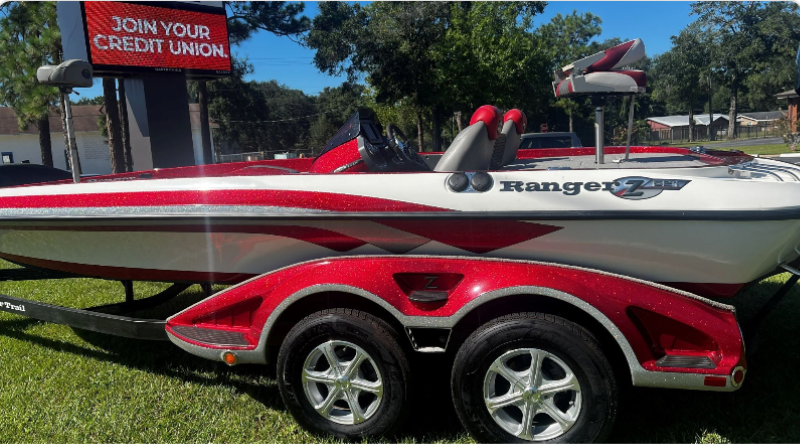
2013 Ranger Boat Z521(*) with 2021 Mercury 250L Torque Master
VIN: RGR06252G213Make an OfferPrice: $38,000 Or Best Offer
Mileage:
Color: white & red
Location: Main Office
5909 North Stewart St., Milton, FL 32570
Get Directions
2022 Honda Civic LX
VIN: 2HGFE2F59NH000000Make an OfferPrice: $19,400 Or Best Offer
Mileage: 41,300
Color: Gray
Location: Main Office
5909 North Stewart St., Milton, FL 32570
Get Directions
2023 Ford F-150 XLT
VIN: 1FTEW1EP0PF000000Make an OfferPrice: $36,900 Or Best Offer
Mileage: 28,600
Color: White
Location: Main Office
5909 North Stewart St., Milton, FL 32570
Get Directions
Nine Steps Became Two
BEFOREPosting a vehicle
- Log in to the CMS & edit page
- Resize the photos in Photoshop
- Type & arrange the details
- Upload images and format listing
- Publish
Now
Submit one form.
Photos, details and the offer button are on the page as soon as the form is in. No website logins. No photo formatting.
BEFORETaking a sold vehicle down
- Log in to the CMS & edit page
- Delete its photos and details
- Reformat the listings around it
- Publish
Now
Move it to Sold.
Drag the repo record card one column over on the pipeline board and the listing is gone from the page. The record stays in HubSpot for reporting.
It Works for Any Page You Update by Hand
The same setup, a HubSpot custom object feeding a live page, fits any content that changes often and is kept up by hand today. Or even a page where another department needs to manage the listings without editing in the CMS.
Other pages the same setup fits
Career Pages
Event Listings
Indirect Dealer Listings
Listing a repo used to mean going into the website and rebuilding part of the page by hand. Now I fill out a form, and the vehicle is live. When it sells, I move it one column over on the pipeline, and it’s gone from the site. It feels like magic.
 Jennifer WelchMarketing Coordinator, Santa Rosa County Federal Credit Union